Stage smaller than display stretches boundary pixels
-
Hi all,
I've been running into an issue that maybe there is a known workaround for? If I create a stage that is smaller than a connected physical display, and then use the stage setup window to place the stage at some location within the display, there is a problem: Instead of just displaying black on the portion of the display that is beyond the edge of the stage, isadora stretches or smears the last pixel from the edge of the stage across the unused area of the display. If that pixel is not black, some color from the edge of the video or image ends up filling in all the area that should be blank.
Is there a way to prevent this behavior without having to map the entire larger resolution of the full display and use izzymap or other tools to place the content within it?
Isadora 4.1.3, Mac OS 15.6.1
-
Well it's safe to say that that's not how Stage Setup is supposed to be used. The intended workflow would be to be to place the content in the desired place at the desired size (e.g. using the Matte++ actor with the 'scale fg' input set to 'off', the Zoomer actor, or a Projector actor inside a User Actor with specific 'horz pos', 'vert pos', and 'zoom' settings so you can use it in all your Scenes.)
A workaround would be to put a Crop actor just before your Projector actor and try chopping off the very outside pixel of the content so that last pixel doesn't get stretched across your display.
TroikaTronix Technical Support
New Support Ticket: https://support.troikatronix.com/support/tickets/new
Support Policy: https://support.troikatronix.com/support/solutions/articles/13000064762
Add-Ons: https://troikatronix.com/add-ons/ & https://troikatronix.com/add-ons/?u=woland
Professional Services: https://support.troikatronix.com/support/solutions/articles/13000109444| Isadora Version: all of them | Mac Pro (Late 2013), macOS 10.14.6, 3.5GHz 6-core, 1TB SSD, 64GB RAM, Dual AMD FirePro D700s |
-
Totally makes sense; crop wouldn't work in many cases unless there is a point to crop to that is black, but of course there are other solutions.
I haven't come across this issue often, since, yes, I would usually just set the stage to match the display and then would use various actors, or izzymap, or even just the second tab of stage setup for that stage to place content.
However, if stage setup should never be used in the way that leads to the issue in my first post in this thread, why is it possible at all to make a stage be different in size from a display it is associated with, and why is it possible to drag the display / stage relationship in the first tab of stage setup (the stage settings tab)? It seems like the only way stages can be used is if they are set up to be the full size of the display they are associated with, otherwise this pixel smear will occur?
This is coming up for me in some specific cases where I need to hand off a show file to users who may connect to various different physical displays at different time. Those displays have different resolutions that might be higher than the resolution of the stage, and are pre-focused in their venues in ways that can't be adjusted. They may not have the experience with Isadora to make a lot of changes. The interface design of the first tab in stage setup for any stage makes it look like you can set a Custom resolution for a stage which will mean the content in the scenes always relates to that stage as originally programmed, but that the stage can be placed within a larger or higher resolution display by dragging it around to the appropriate location, without changing the resolution of the stage to Match Display. I'm confused about the use of Custom resolution and the ability Isadora gives us to drag around, other than I guess the assumption that this would only occur if the stage is larger than the display and is intended to be used for blending.
Would it be possible to adjust the behavior of isadora in a future update so that pixels on a display that are outside the boundaries of a stage do not pick up any pixel data from the edges of any stages that touch them?
-
@dbengali said:
why is it possible at all to make a stage be different in size from a display it is associated with[...] It seems like the only way stages can be used is if they are set up to be the full size of the display they are associated with, otherwise this pixel smear will occur
Because, while it doesn't let you do the unusual thing you were hoping for, it does still allow you to do a number of different, unusual things.
Yes, normally it's assumed that you do want the sum of the resolutions of the displays assigned to a Stage (minus overlap for blending) to add up to the resolution of the Stage because that covers nearly all use cases.
Primarily I've used custom display sizes in cases where I know the resolution of a weird, custom-made display but the display itself is seen by the computer as a standard resolution (like with some smaller, custom-made LED displays I've worked on).
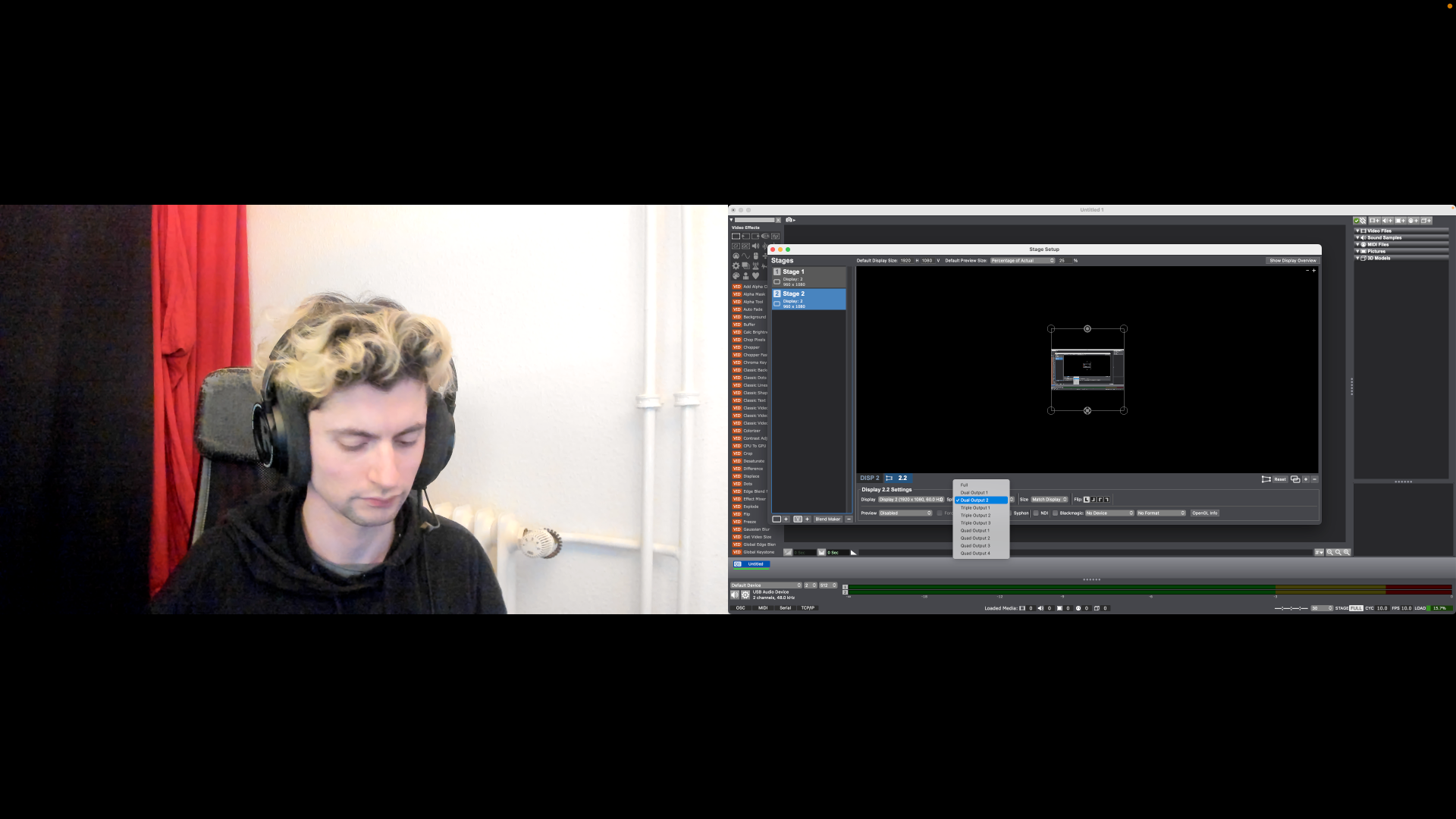
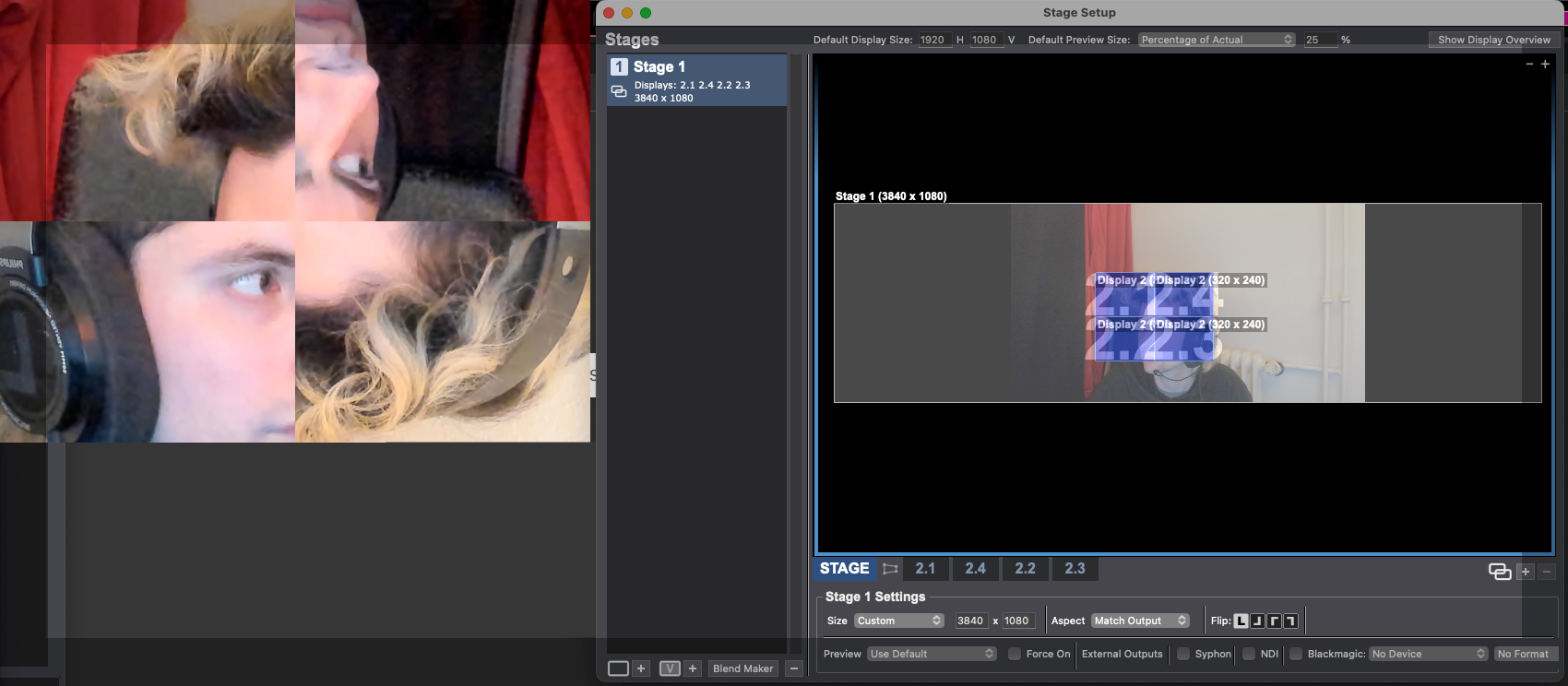
You can, however, do many different things with Stage Setup like sending content to a Stage that uses only half of a Display. Below is a screenshot of my stage output on Display 2 where Stage 1 (live feed) is only showing on Display 2, Dual Output 1 (left half), and Stage 2 (screen capture of display 3 so I can show my Stage Setup settings) is showing only on Display 2, Dual Output 2 (right half):
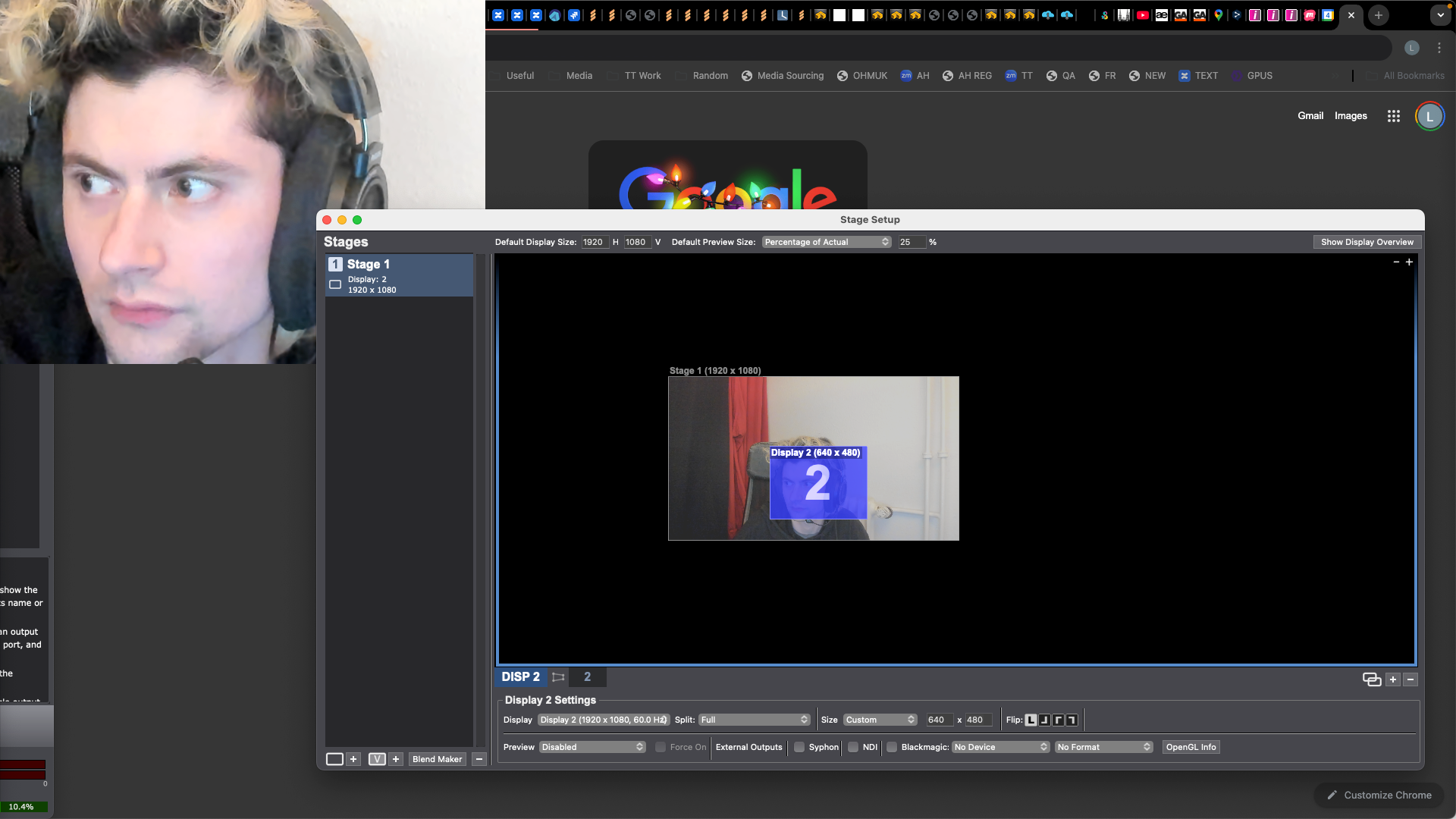
Below is an example of a custom stage size (actual display size) bigger than custom display size (smaller than actual display size).
Here dragging the display around on the Stage determines what part of the content from the Stage will be shown on this portion of the display.
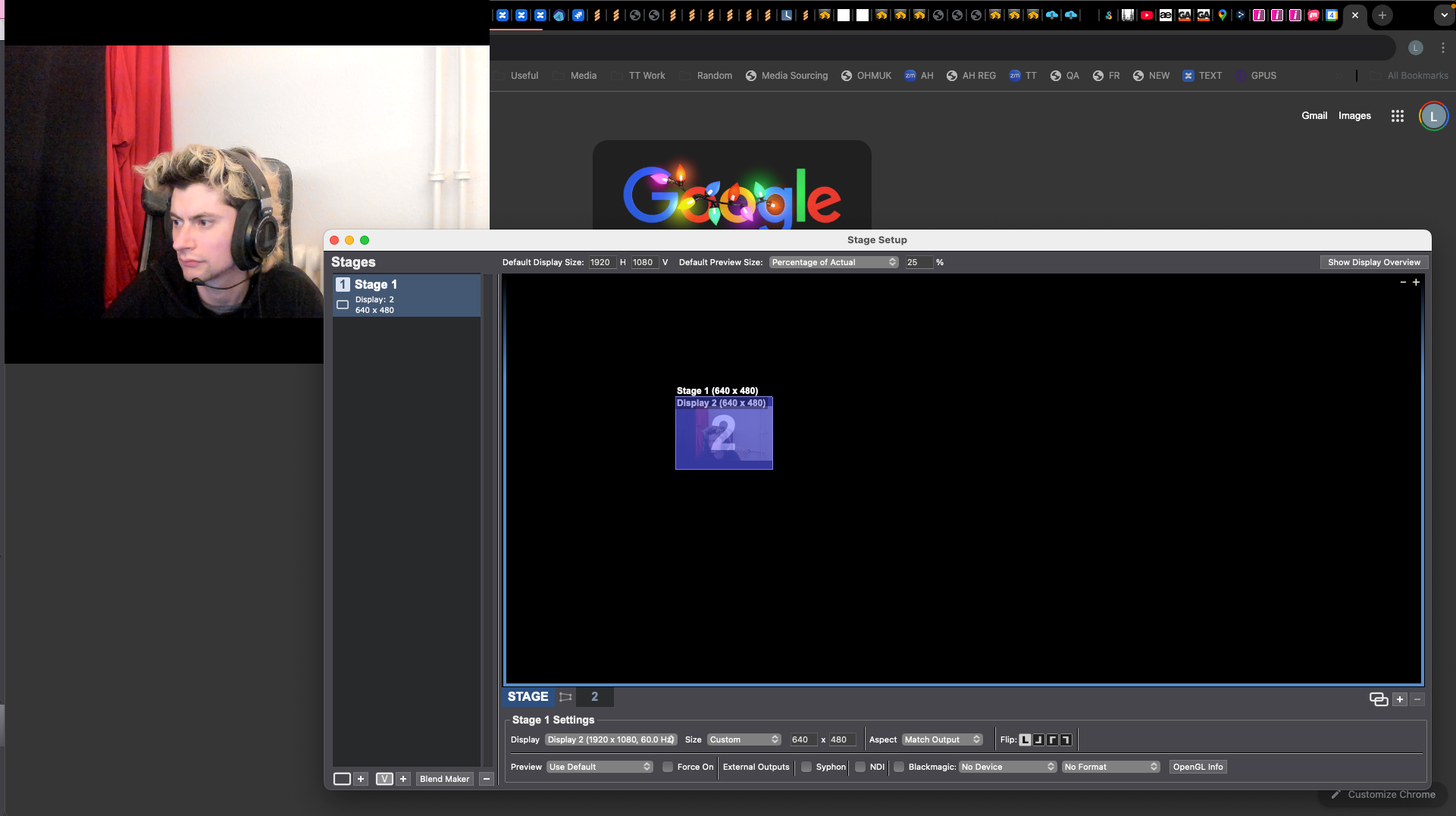
Below is an example of a custom stage size (smaller than actual display size) matching a custom display size (smaller than actual display size)
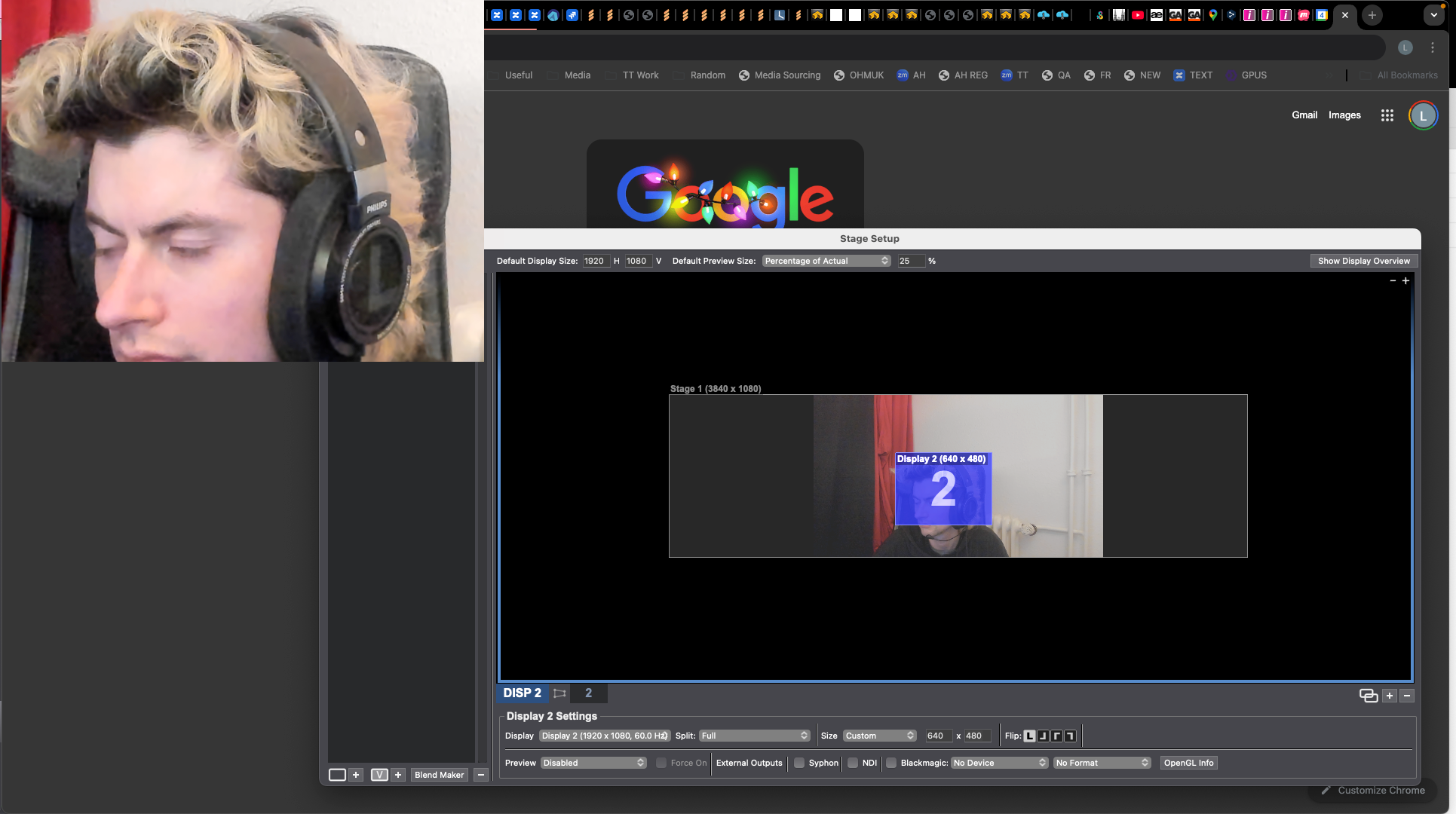
Below is an example of a custom stage size (larger than actual display size) that's larger than the custom display size (which is smaller than actual display size)
Below is an example of a custom stage size (larger than actual display size) larger than four Quad outputs of Display 2 with custom sizes and flip options:
-
@dbengali said:
why is it possible to drag the display / stage relationship in the first tab of stage setup (the stage settings tab)? [...] I guess the assumption that this would only occur if the stage is larger than the display and is intended to be used for blending.
Pretty much, yeah.
What I showed above demonstrated edge cases for dragging the display around inside a Stage, but here's the primary reason you can drag them around:
https://drive.google.com/file/d/1x-PJHDB_Xx4YlFZM-PMjLQLML8DvYoMV/view?usp=sharing
(Dragging multiple displays around to re-arrange them within a Stage and for edge-blending purposes.)
-
@dbengali said:
This is coming up for me in some specific cases where I need to hand off a show file to users who may connect to various different physical displays at different time. Those displays have different resolutions that might be higher than the resolution of the stage, and are pre-focused in their venues in ways that can't be adjusted. They may not have the experience with Isadora to make a lot of changes.
In cases like these, I suggest making patches that can adjust themselves using the Get Stage Size actor (to figure out the size of the display you're working with automatically), Get Video Size (to figure out the size of the content you're working with automatically), then using Scaler, Chopper, Chop Pixels, Matte, and Matte++ actors and some math actors like Calculator and JavaScript to ensure that your content always ends up looking right on whatever size display is thrown at your patch.
If you're compositing things from multiple Projector actors, you could also consider sending everything to a Virtual Stage first, then using the Get Stage Image actor to get the combined feed and manipulate all the content together as one video stream (also a useful trick if you want to combine all the video into one stream before sending it into a single mapped Projector actor so you only need to do the mapping in one place). You can even put in Control Panel elements to your Isadora Patch that let your inexperienced operators move the content around, increase the size, etc. Since you can publish properties from within IzzyMap, you can even make the mapping points and scale/location of the mapping slices adjustable via the Control Panel.
-
@dbengali said:
[...] I need to hand off a show file to users who may connect to various different physical displays at different time. Those displays have different resolutions that might be higher than the resolution of the stage, and are pre-focused in their venues in ways that can't be adjusted. They may not have the experience with Isadora to make a lot of changes. [...] The interface design of the first tab in stage setup for any stage makes it look like you can set a Custom resolution for a stage which will mean the content in the scenes always relates to that stage as originally programmed, but that the stage can be placed within a larger or higher resolution display by dragging it around to the appropriate location, without changing the resolution of the stage to Match Display.
If you set a custom resolution for a stage and then move it to a specific point on a display, how would an operator who can't adjust things in Isadora be able to open Stage Setup and put the custom sized stage in the right place on the display that's now a different size?
If the display isn't also being set to a custom size, the relative location at which you put the content wouldn't be preserved if you plug in a different-sized display anyway.
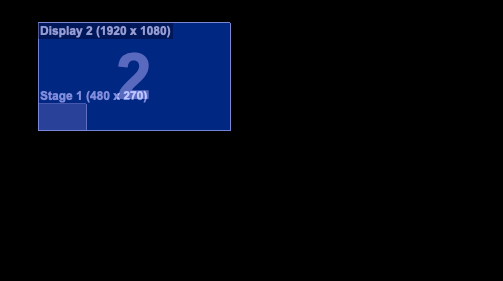
Custom-sized 480x270 Stage assigned to a Display that's 1920x1080:
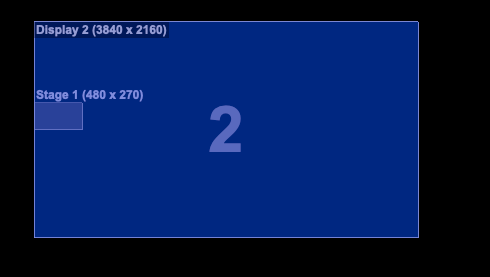
Here's what happens if you then connect a 4k display to the computer (the stage stays at the same pixel coordinates, but this doesn't preserve the relative location or relative size of the content on the display):
-
@dbengali said:
Would it be possible to adjust the behavior of isadora in a future update so that pixels on a display that are outside the boundaries of a stage do not pick up any pixel data from the edges of any stages that touch them?
Yes, I can log it as a feature request. It's certainly an interesting use case. I must say that I do find the stretched pixels kind of pretty though, and even know of Isadora users who also like this look and cause it to happen intentionally.