[ANSWERED] Challenge recording 1 hour, tomorrow
-
hello,
I need to record 1 hour in HD quality, a live show in isadora, but it seems it consumes a lot of space. Can somone help me how to do that? Can I maybe place it somehow on my ssd drive that has usb ( not usb c)?
All ghe best Eva
-
Hi Eva
Without knowing much more and in the interim of awaiting better minds to come along, would it make sense to pipe your isadora feed into OBS or similar?
Maybe by making the recording there it might lessen the size and strain on your computer? You can achieve this via syphon or NDI?
It would probably be better to record direct to your internal drive versus an external one too.
Without a greater picture of your machine specs and patch, that is what I would try first. I have never recorded directly in Isadora.
If you wish to have the audio too, you need a piece of software called, BlackHole. This will help route the audio internally to OBS etc. I believe you still need this app or similar to route audio for recording.
My 2cents
Hope this helps.
Eamon
-
hi Eamo,
Thank you! I am on a mac studio M1. Today I tried to record directly in Isadora with 55gb space left. After about 25 minutes I got a message that there was not enough space to proceed. So I am a bit surprised and try to find solutions.
It is only ghe visual I need.
All the best
Eva
-
It sounds like you have a lot of items on your HD. 1hr of HD video is about 10GB and your buffer is probably getting overloaded etc.
If you can free up some space, you might have more chance of getting a record but nonetheless, try the OBS/wirecast route and hopefully it will record a better copy without stressing your remaining space.
eamon1no. 14" MacBook Pro M1, 32GB RAM, Max Processor, 1GB SSD
Various Mac models from mac mini 2012 to Macbook Retina 15"
1no. imac 21.5 M2 model. -
With 55gb left, you might get a warning that you are low on space if your drive is a Terabyte, since this would put you below 5% drive space pretty quickly.
Assuming you are using the MP4 / H264 Record Stage Setup - Codec:
🎥 Typical 1080p H.264 Bitrates
Quality Level Bitrate (Mbps) Approx File Size (1 hour) Low (YouTube compressed / conferencing) 5 Mbps ~2.2 GB Standard consumer camera 8 Mbps ~3.6 GB High quality DSLR / mirrorless 12 Mbps ~5.4 GB Very high quality 20 Mbps ~9 GB Visually lossless / mezzanine 40 Mbps ~18 GB The Data Rate can be set in the Record Stage Setup dialog, via the 'Max Data Rate' selector.
You really shouldn't need to use anything higher than 12 Mbps.
Here are some specs on recording transfer sppeds:🎥 Typical 1080p 30fps H.264 Bitrates
Quality Level Bitrate (Mbps) Required Write Speed Low (streaming) 5 Mbps ~0.6 MB/s Standard 8 Mbps ~1 MB/s High quality 12 Mbps ~1.5 MB/s DSLR quality 20 Mbps ~2.5 MB/s Very high 40 Mbps ~5 MB/s Your external USB drive (assuming SSD) is likely fast enough for the job.
I use Black Magic Designs Disk Speed Test to verify my drive speeds for such things.
It is included in the FREE Black Magic Desktop Video software: Blackmagic Design Downloads -
Oh I realised something from that,
I put it as a QuickTime movie, that makes the file 15 gb for just 5 min.
Ill try also record to an ssd... for now since I need to figure out the obs and first show is in half an hour:)
Thanks
-
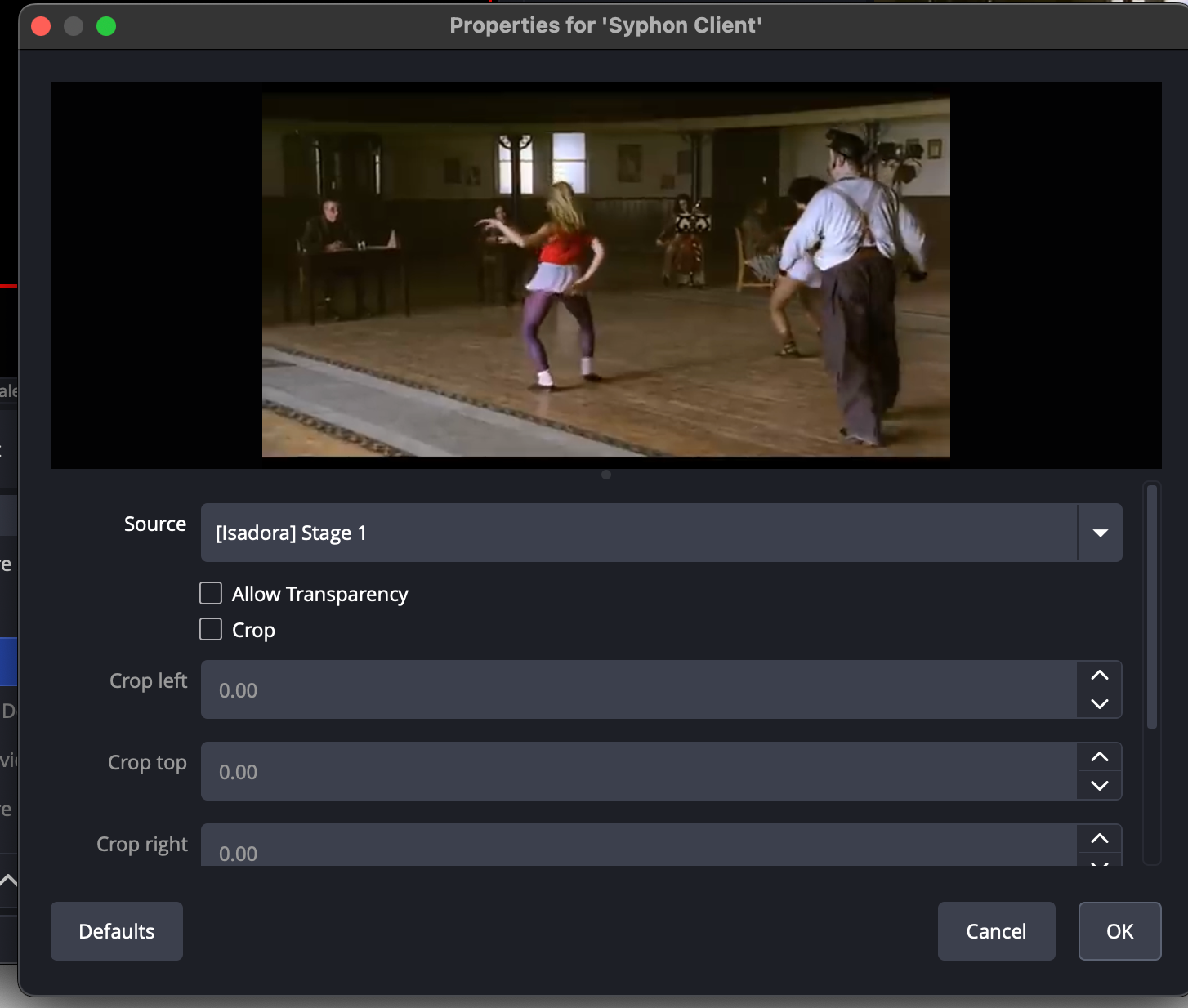
- Turn on Syphon in Isadora in stage set up
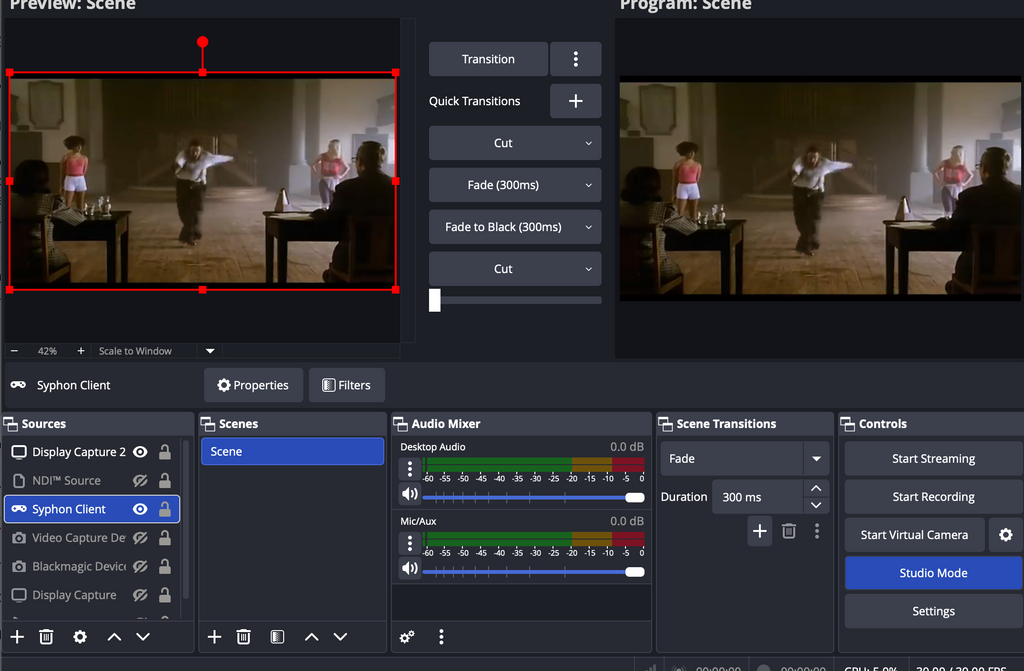
In OBS, on the bottom left, there is the box for sources.
Click on the + button to bring up the source option
You should see Syphon in the pop up menu.
When you select Syphon, then you need to set the source e.g. Isadora Stage 1.
Your syphon feed should appear in the left hand preview window. Use CUT or the slider to bring the preview into the output pane.
You might need to check the Settings (Bottom RIght tab) for the quality of the recording.
Click on Record. It will default to the movie folder.
Best of luck with it.
screenshot-2026-02-21-at-09.52.33.pngscreenshot-2026-02-21-at-09.52.56-resized.png
-
Eva Esmann Behrens
Labtop: Macbook pro (Retina) 2015, 2,7 GHz,8 GB, MacOS Mojave
Mac Studio -
-
another possibility on Mac is syphon Recorder. I use it always, it is easier to configure as OBS and it works very well:
https://syphon.info/recorder.html
Best regards,
Jean-François