Projecting Rich Text
-
Hi all,
I can't find a way to accomplish something that feels doable.
During a performance I am writing/editing a piece of text that will then be projected, scrolling over a live feed video. But I need to have some of the words stand out...ideally in a different color, like Red. But those words are not newly written. In other words they can be formatted in advance. But it's a long piece of text so I need to have it scroll. The Text Draw actor would be the easiest, except you can't format specific words.
I tried to use the screen grab actor but the white background of the Google Doc doesn't work for this because it obscures the live feed behind and the words become illegible if you mess with it too much.
I'm kind of at a loss.
Does anybody have any ideas for me?
Thanks in adnvace.
Izzy 3. | OSX 10.14.6| MacBook Pro (15-inch, 20 19) | 2.3 GHz Intel Core i9 | 32 GB 2400 MHz DDR4 | Radeon Pro 560X 4 GB | Intel UHD Graphics 630 1536 MB
-
@jrhooker said:
I am writing/editing a piece of text that will then be projected, scrolling over a live feed video.
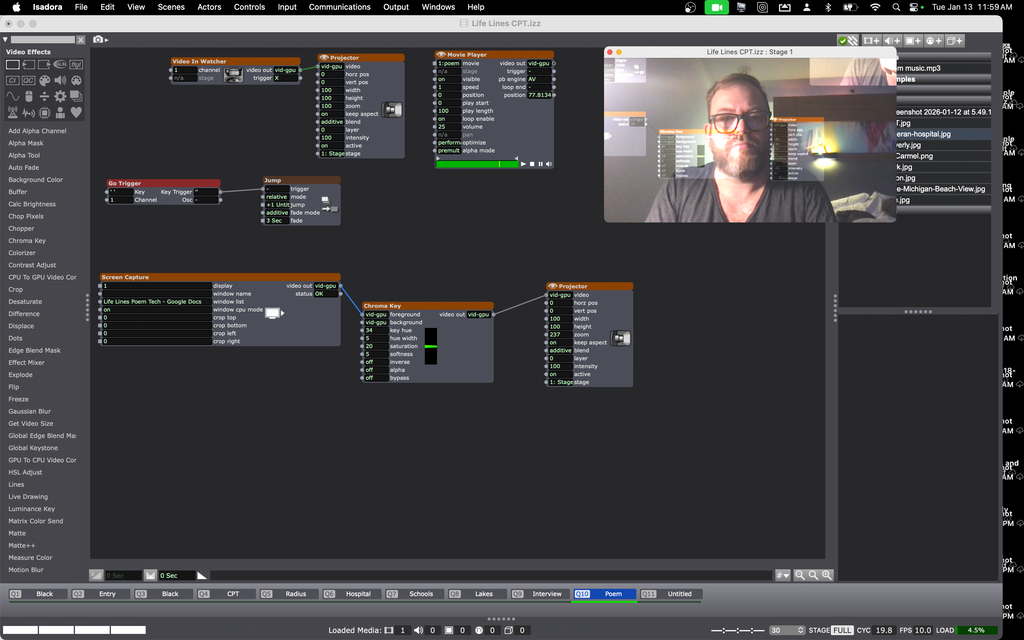
Set the background of your Google Doc to bright green and then use Chroma Key to key it out. I just did an experiment with this and it worked like a charm.
You may also want to add a black highlight to your text and make your default text color white. This will allow your text to show up and be readable regardless of what color the image in the background is.
-
@woland That's why they pay you the pick bucks -- lol!
It worked a treat...ONCE!
I'm pretty sure I'm doing something silly, but can you see what that is? I was working with trying to get it to scroll and while I was messing with it, the google doc image went away and I can't get it back. I don't understand why it's grabbing the desktop and not the file I'm trying for. Right now I'm not hooked up to a second display...should that matter?
Izzy 3. | OSX 10.14.6| MacBook Pro (15-inch, 20 19) | 2.3 GHz Intel Core i9 | 32 GB 2400 MHz DDR4 | Radeon Pro 560X 4 GB | Intel UHD Graphics 630 1536 MB
-
There are numerous Python modules that can load and render different text formats.
If you are infact working with an RFT text file you can
use pypandoc to convert this to HTML (best option for formatting) and then use html2image to get a rendered image.
The workflow would be something like:RTF file → [pypandoc] → HTML
HTML → [html2image] → PNG or RGBA Image
Image → [numpy array] → Isadora video outputDepending on what is the easiest file for your editing purposes the process may need to change.
Did you say you are editing in Google Docs? If so you could have Pythoner fetch the document directly as HTML, and continue the render process.Natively there are no Rich Text render tools in Isadora. Perhaps in the future an HTML renderer might be considered. That is the most flexible available currently I think.
-
@jrhooker said:
It worked a treat...ONCE!
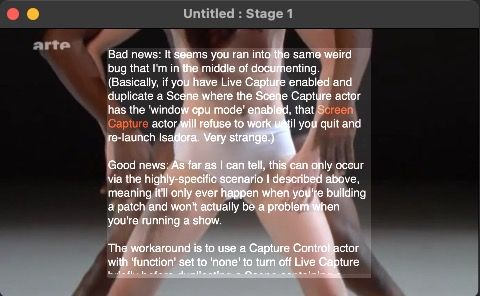
Bad news: It seems you ran into the same weird bug that I'm in the middle of documenting. (Basically, if you have Live Capture enabled and duplicate a Scene where the Scene Capture actor has the 'window cpu mode' enabled, that Screen Capture actor will refuse to work until you quit and re-launch Isadora. Very strange.)
Good news: As far as I can tell, this can only occur via the highly-specific scenario I described above, meaning it'll only ever happen when you're building a patch and won't actually be a problem when you're running a show.
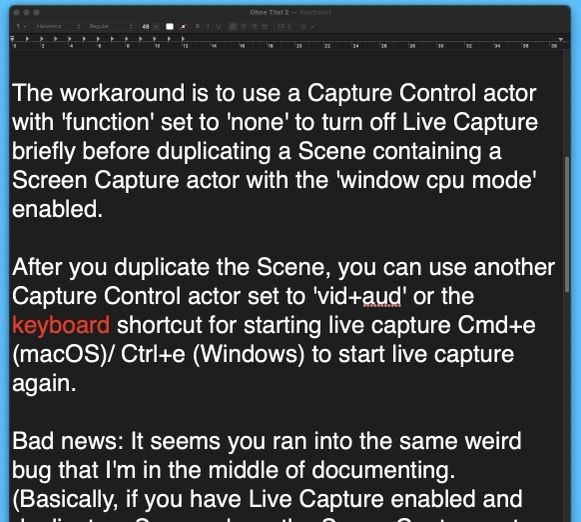
The workaround is to use a Capture Control actor with 'function' set to 'none' to turn off Live Capture briefly before duplicating a Scene containing a Screen Capture actor with the 'window cpu mode' enabled.
After you duplicate the Scene, you can use another Capture Control actor set to 'vid+aud' or the keyboard shortcut for starting live capture Cmd+e (macOS)/ Ctrl+e (Windows) to start live capture again.
@jrhooker said:
@woland That's why they pay you the pick bucks -- lol!
I wish

-
TextEdit has the possibility to set the background to dark, then set the text color to white, and you can also speak the text if you want.
I have added a "contrast adjust" actor because the TextEditor background appears not totally black in Isadora.
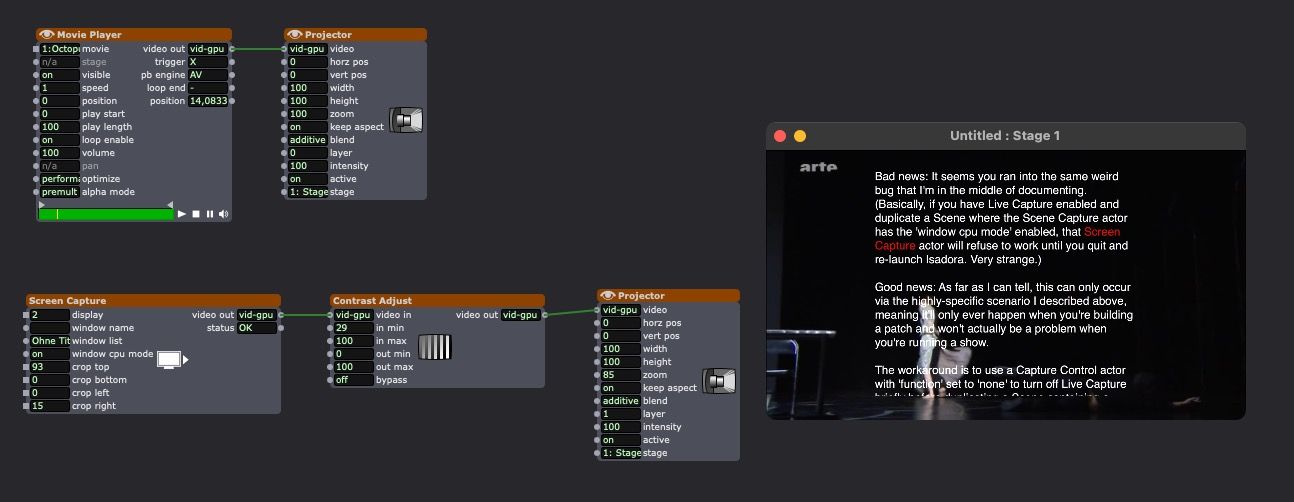
if you can work with a second monitor for TextEditor it is very confortable
TexEdit:
Best regards,
Jean-François