[ANSWERED] Blend Maker - Force Stage Issue
-
I'm new to the Blend Maker tool. I'm running a Mac Pro to two identical projectors. I'm not using a splitter; using the HDMI output to one projector and usbc adapter to the other projector.
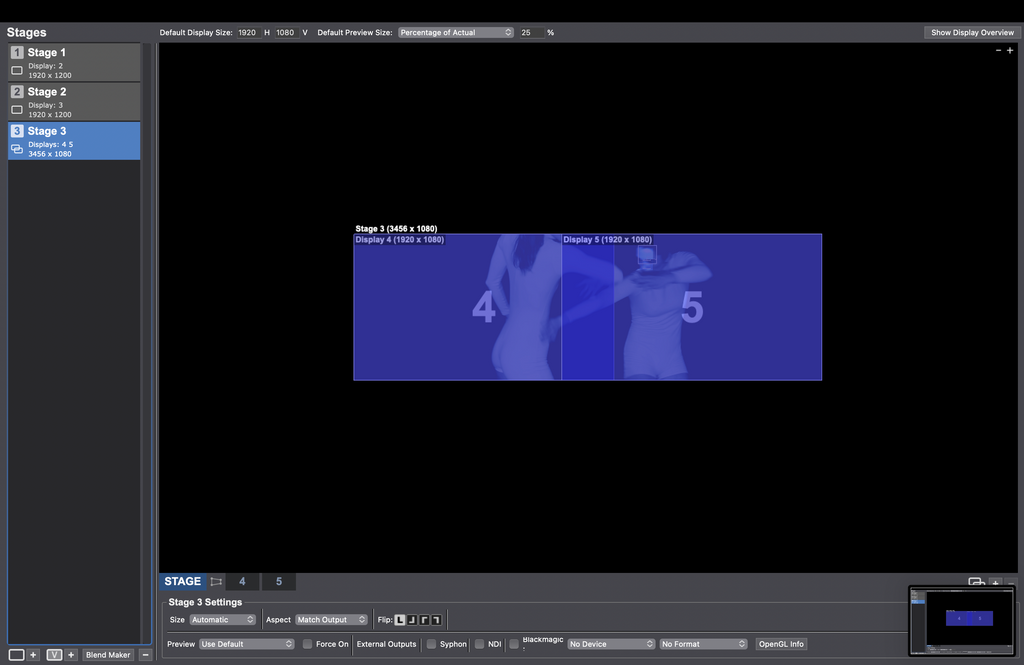
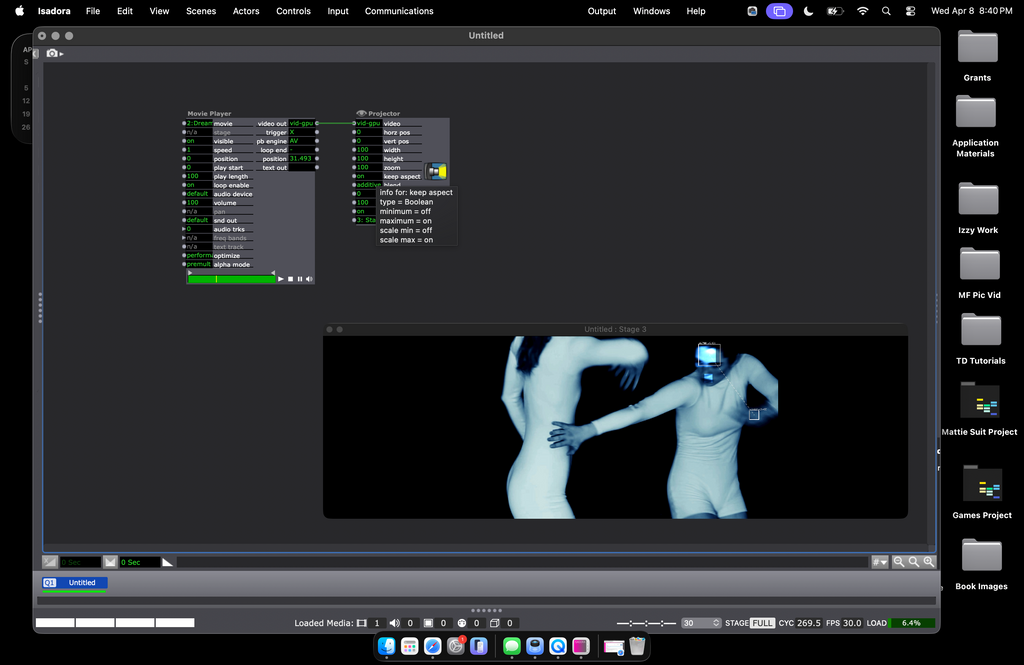
I've got the setup going but when I preview Stage 3 (which combines stages 1 and 2), it doesn't send the blended image to go to the projectors. It just goes into force preview mode on my laptop screen. It I'm attaching screenshots of my Stage Setup Screen on my patch. Thank you for any help on this!
-
If you are looking to output only the two blended images you don't need the first two stages you created. The blended stage will output to two projectors.
When you're looking at your blended stage in stage setup, you have two tabs beside the word 'stage'. In your case right now they say 4 and 5. By clicking these you can see which physical projector the stage is connected to.
Once you remove the other two singular stages and ensure that the blended stages are being sent to the same physical projectors that those were previously connected to you should see the output you expect.
-
Thank you for this!
Can anyone point me to any kind of tutorial on how to use the Edge Blend Tool?
Specifically, what the Curve, Gamma, and Knee parameters do and how to manipulate them to blend the edges of the two displays together. I've fiddled around with them for some time, but can't get the result of a fully blended single screen. I either get a strong dividing line or a bright band where the images overlap.Any suggestions would be greatly appreciated!
E.
-
There's some info on page 477 of the Isadora 4 manual, which if you don't have it is downloadable from here:
https://troikatronix.com/files...
Might shed a little light on what those parameters do.
HTH
Mark (not that Mark) -
Hi
I would strongly recommend watching Mark's (that Mark's) guru session on youtube.
The guru session is excellent at explaining the methodology and steps you need to take here.
There is about 1hr 30mins of content and well worth the watch.
Link to Guru 12, HERE
This video is exactly what you are doing. You can use the Brave browser if you do not have youtube premium . It removes all the ads.
eamon
1no. 14" MacBook Pro M1, 32GB RAM, Max Processor, 1GB SSD
Various Mac models from mac mini 2012 to Macbook Retina 15"
1no. imac 21.5 M2 model. -
@eamon said:
You can use the Brave browser if you do not have youtube premium. It removes all the ads.
Off topic: I've never heard of Brave Browser before - it looks amazing. Thanks, for the tip!
Cheers,
Hugh